A visitor who wants to change their cookie choices on your Wix site should not have to sit through your whole cookie banner again. Until now, clicking the re-open button brought the banner back, and they had to go through Manage preferences before they could change anything. Wix cookie consent withdrawal took several clicks when it should take one.
Consentik for Wix now fixes that. The re-open button opens a focused popup instead of the banner, and you decide which one: the Preferences popup, or a new Privacy popup that shows visitors what they agreed to and lets them withdraw it in a single click. A new Consent timestamp option adds the dates of their choice to both popups.
The Re-open Button Now Opens a Cookie Preferences or Privacy Popup
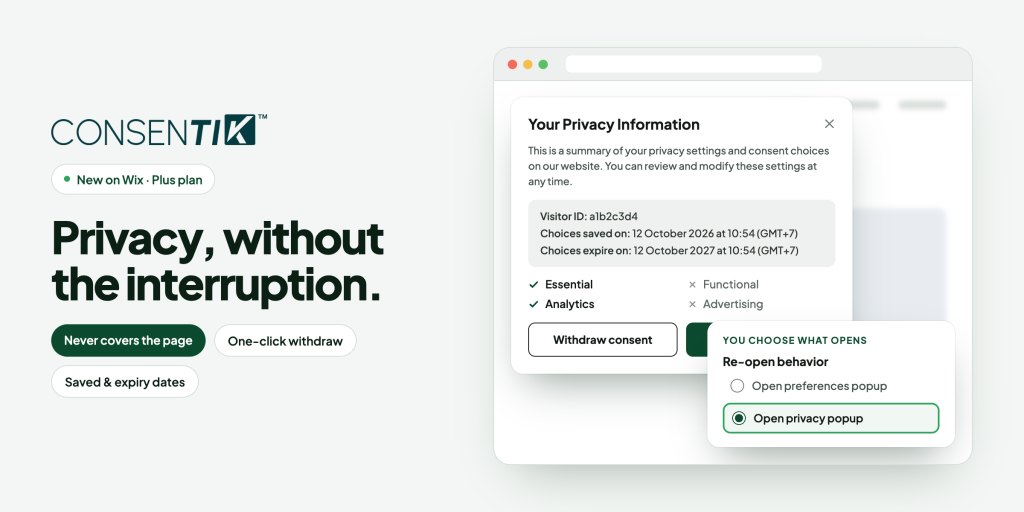
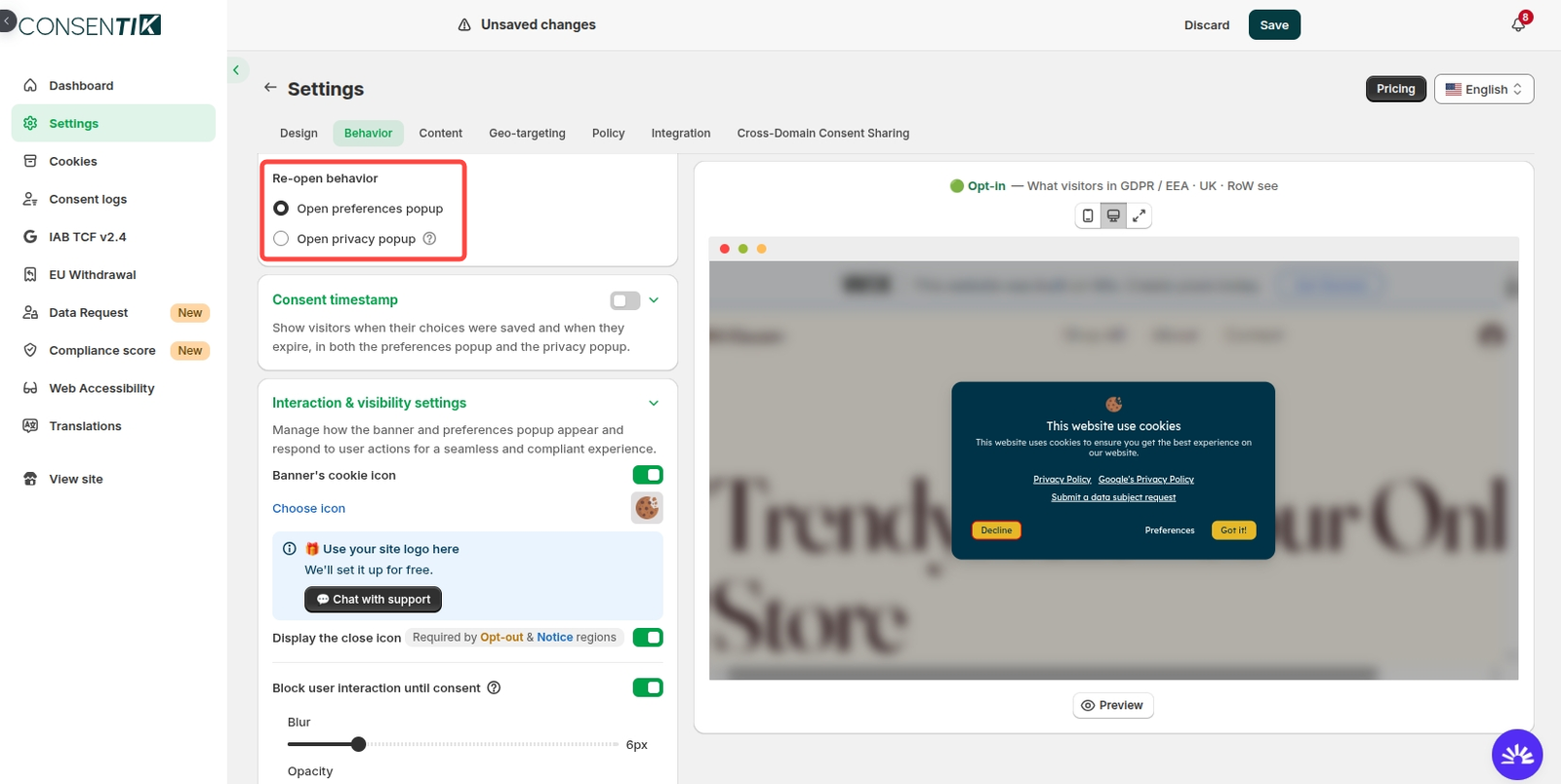
The new Re-open behavior setting gives you two options for what happens when a visitor clicks your re-open button (or your footer link):
- Open preferences popup (default): visitors land directly on the cookie category switches and adjust their choices in one click.
- Open privacy popup: a compact card in the same corner as your re-open button that shows exactly what the visitor has agreed to, without covering the page or blocking browsing.
- Consent timestamp: an optional switch that shows when the visitor’s choices were saved and when they expire, in both popups. It is off by default.
- Availability: Re-open behavior and the Privacy popup come with the re-open button on the Plus plan and above. Consent timestamp is also Plus and above.
Why One-Click Wix Cookie Consent Withdrawal Builds Trust
Under GDPR Article 7(3), withdrawing consent should be as easy as giving it. Making the path short is good for compliance, and it is also good for the people browsing your site.
- Less interruption: visitors manage their privacy from a small popup instead of a full banner, so they keep browsing your site or store.
- More transparency: visitors see what they agreed to and when. Clear answers build trust in your brand.
- Clearer consent records: withdrawals appear in your Consent log as “Withdrawn”, separate from declines, so you can tell them apart at a glance.
- No action required: the update reaches your site automatically. Your existing settings are kept and visitors are not asked again.
What Visitors See in the Wix Privacy Popup
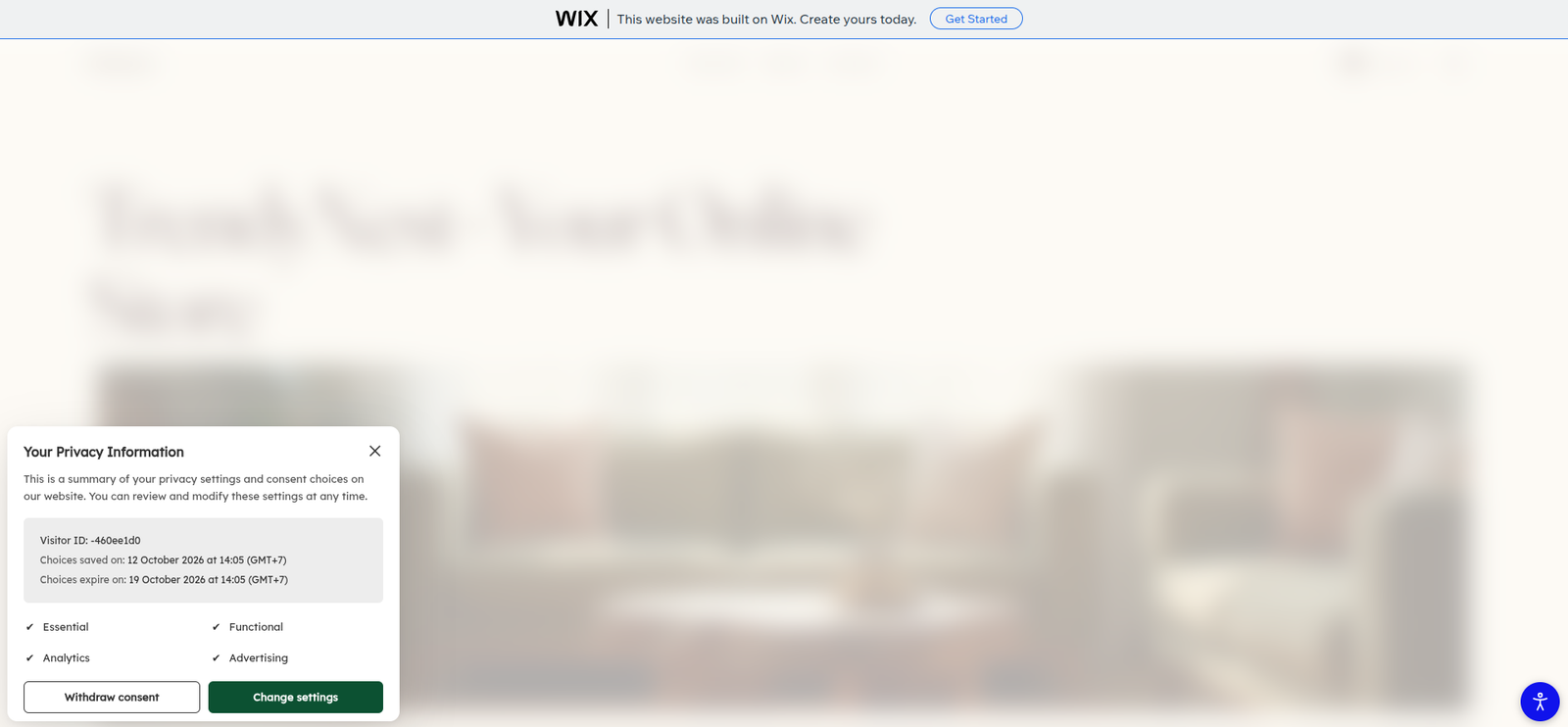
The Privacy popup is a small card that appears in the same corner as your re-open button. It shows:
- Your title and message: the text you set in the dashboard.
- Visitor ID: the visitor’s own identifier, useful if they contact you about their data.
- Consent timestamp: when their choices were saved and when they expire, in the visitor’s own time zone, for example “6 October 2026 at 16:32 (GMT+7)”. Shown only if you turn it on.
- Category status: each cookie category with a ✔ or ✕ for what they accepted.
- Two buttons: Withdraw consent and Change settings.
How withdraw consent works
Withdrawing erases the visitor’s saved choice and returns them to undecided, exactly as if their consent had expired:
- Stored consent is deleted: including any IAB TCF consent string.
- Signals are revoked right away: for Wix, Google Consent Mode and Microsoft UET.
- Cross-domain records are cleared: if you use Cross-Domain Consent Sharing, the visitor is asked again on every site in the group.
- They can choose again immediately: the Preferences popup opens (or the banner, if Manage preferences is off). If they close it and reload, they see the banner as on a first visit.
How change settings works
Change settings leaves the saved choice untouched and opens the Preferences popup with the visitor’s previous choices in place. Nothing changes until they save.
Step-by-Step: Set Up the Wix Cookie Re-open Behavior and Privacy Popup
Quick setup (4 steps)
- In the Consentik dashboard, go to Settings -> Behavior.
- In the Re-open button card, make sure the re-open button is turned on. Re-open behavior appears below the position and margin fields.
- Choose Open preferences popup or Open privacy popup.
- To show dates, turn on the switch in the Consent timestamp card, directly below the Re-open button card.
Customize the Privacy popup (optional)
When you select Open privacy popup, the Popup privacy config section appears right under the radio buttons. Edit the popup title, message, Visitor ID title and the two button labels, then set the background, text and highlight colors. Click Preview to check it with sample data. The preview on the right of the Settings page always shows the Privacy popup with sample data, so you can style it before any visitor has saved a choice.
Multilingual sites: all new text goes through Translations. Look for the Text for Privacy Popup group and the two timestamp labels. If your site uses multiple languages, the matching fields in Settings are locked and show a Translation link that takes you to the right group.
Consent Log, Timestamps and Who This Update Does Not Affect
- Withdrawn in your Consent log: a withdrawal is recorded as its own event with the essential category only. It appears in the list and in exports, but it is not counted as a decline and is not included in your consent rate or charts.
- Timestamps for earlier choices: a choice saved before this update only has an expiry date, so those visitors see the expiry line alone until they next save.
- Updated default labels: the defaults are now “Choices saved on” and “Choices expire on”. If you never edited the old labels, they were updated for you. Custom labels were kept.
- Manage preferences turned off: nothing changes. With no Preferences popup to open, the re-open button keeps showing the banner.
- IAB TCF banner sites: the re-open button keeps opening the TCF banner, and these settings are hidden.
- Previous banner version: the dashboard asks you to update your banner first. Until then, the re-open button keeps re-showing it.
- No page reload on withdrawal: third-party scripts already loaded in that session stop at the next page change.
- New visitors: the re-open button only appears after a visitor’s first answer.
Start Using One-Click Cookie Consent Withdrawal on Wix Today
The update is live on every Consentik for Wix site. If your re-open button is on, visitors already get the Preferences popup. Switch to the Privacy popup in Settings -> Behavior if you prefer it. To check your live site, open it in a private or incognito window, since a normal window may show a cached version of the banner.
Read the full setup guide in the help center, learn more about Consentik for Wix, or contact our support team from the dashboard.
Give Wix visitors one-click control over cookie consent
Add Consentik to your Wix site and let visitors review, change or withdraw their choices without seeing the banner again.