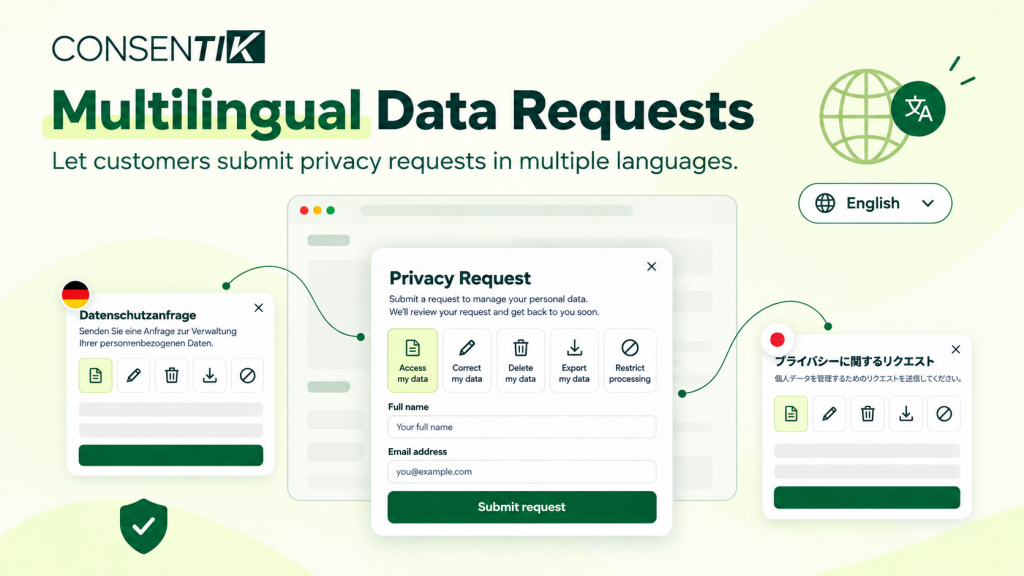
A visitor reads your German pages, accepts a German cookie banner, then asks what data you hold about them. Until now, the request flow switched to the single language set in your DSAR setup, so the form, the verification email and the final reply could arrive in a language they do not read comfortably.
Consentik Wix now gives each language in your Translations list its own Data Request experience. The trigger link, request-type cards, form, submitted screen, confirmation page and customer emails all follow the language the visitor is browsing in, from the first click to the final reply.
Multilingual Data Requests Now Follow Each Visitor’s Language
Every language you add in Translations gets a full copy of the Data Requests content. Each copy is prefilled from Consentik’s library of 64 languages, so you start with a complete translation and only edit what you want to change.
- Language-specific content: each language has its own trigger text, five request types, form labels and customer emails.
- Prefilled translations: the same 64-language list the cookie banner uses, ready to review.
- A consistent flow: the request remembers the language it came in, so the verification email, confirmation page and final response match.
- Built-in messages in place: validation errors, Copy, Done and Back are already translated for each language.
- Right-to-left support: Arabic, Hebrew, Persian and Urdu display right to left, as they do in the cookie banner.
The feature is available on the Advanced plan with Multiple Language enabled. Configure at least two languages in Translations, because with only one language there is no language selector in DSAR Setup.
Why Localized Privacy Requests Matter for Your Store
- Clearer choices: visitors can read each request type and form field in their own language before they submit.
- Matching replies: the verification email and your final response use the language of the original request.
- Less setup work: translations are prepared for you, so you only review the languages that matter most to your market.
- One brand look: colors, popup position and trigger placements stay the same across every language.
What Your Visitor Sees in Each Language
A visitor browsing your French pages sees the trigger link, request-type cards, form and submitted screen in French. The verification email, confirmation page and your final response email also arrive in French. Your own notification email is not translated, so you always read it in one language.
Step-by-Step: Set Up Multilingual Data Requests
Quick setup (3 steps)
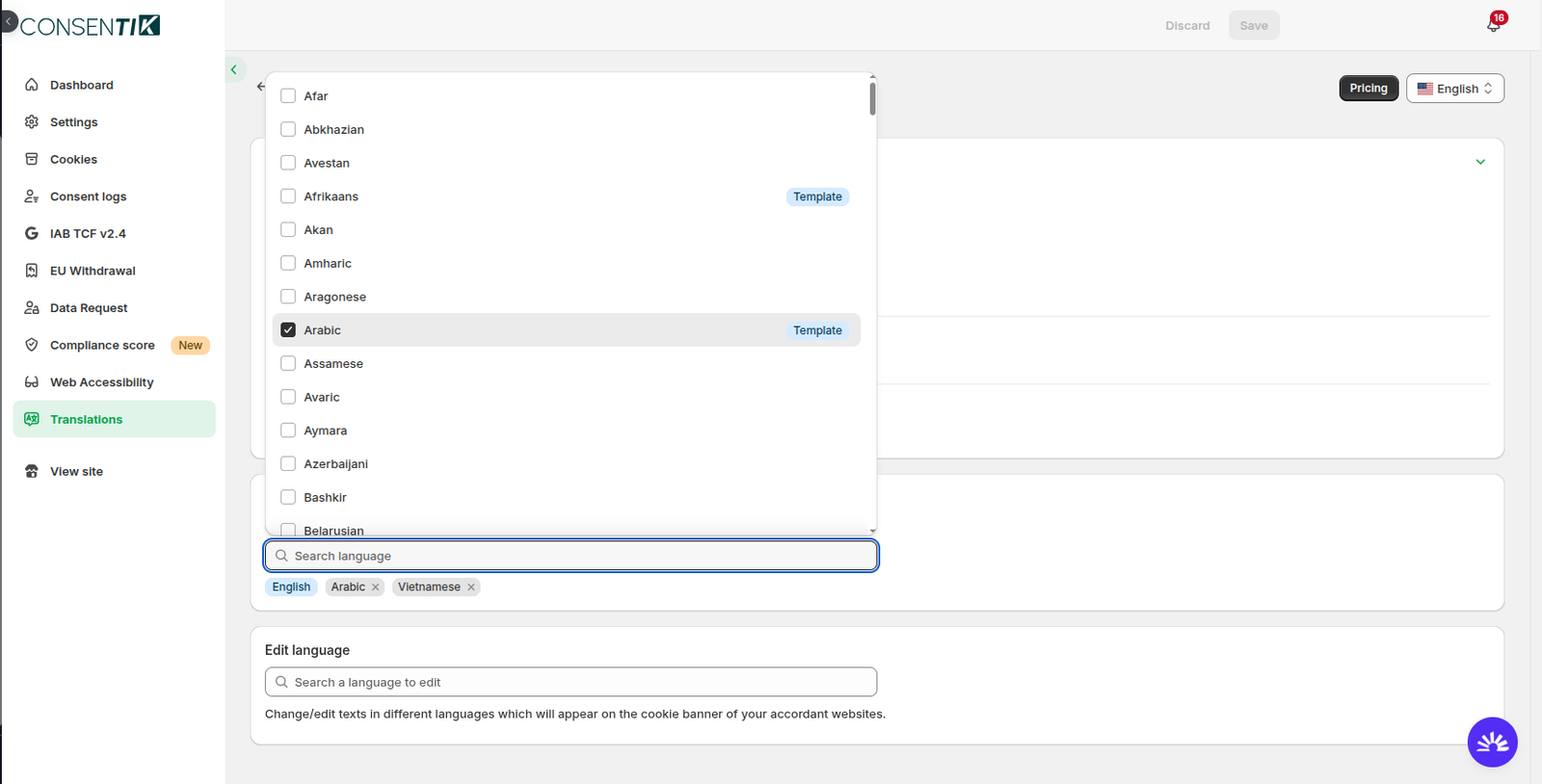
- Add your languages in Translations. Add the languages your site speaks and choose one as the default. Data Requests follows this list automatically, and each new language is filled in as soon as you add it.
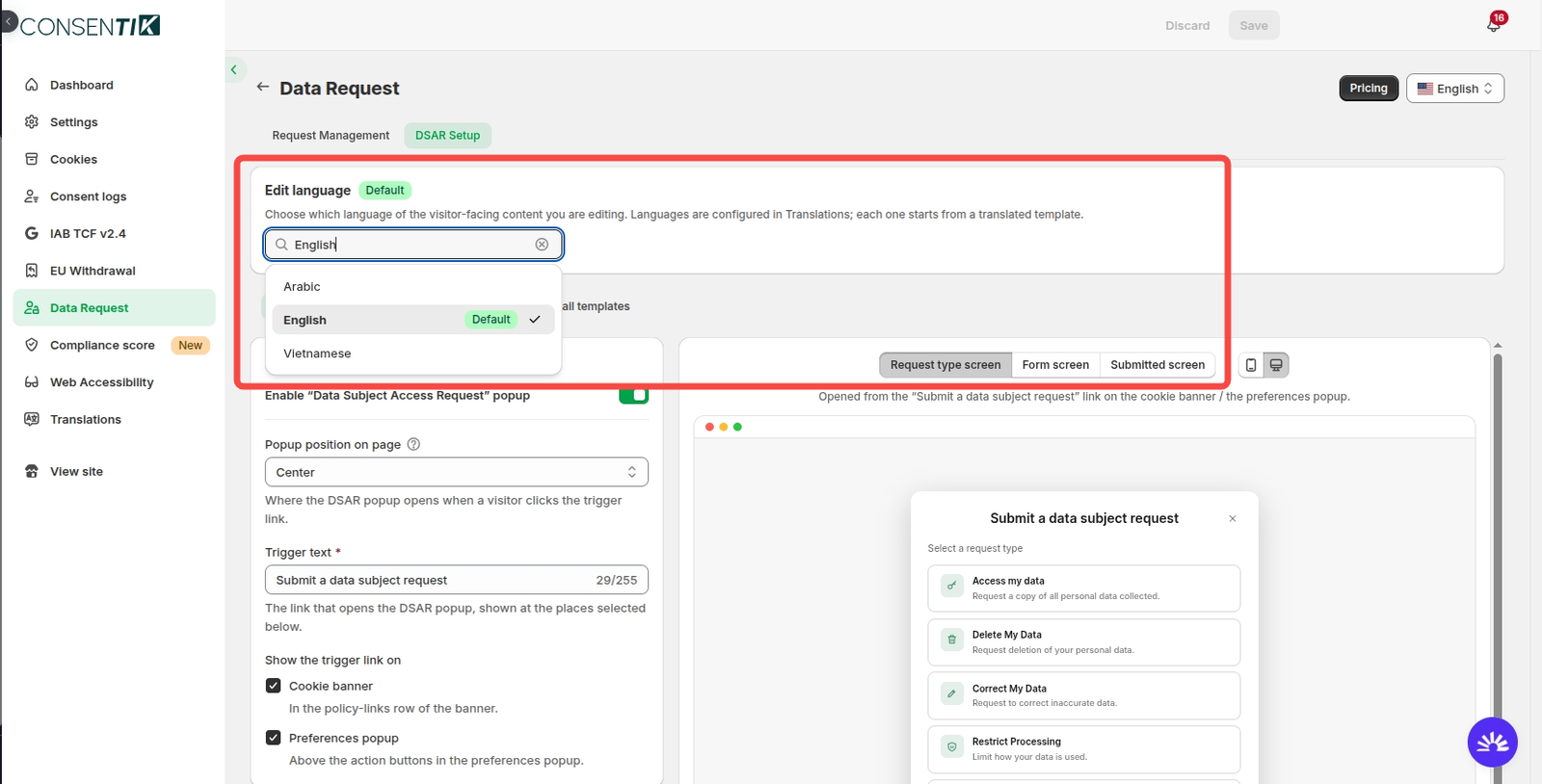
- Choose the language to edit. Go to Data Requests -> DSAR Setup. Use the Edit language card at the top of the tab to pick a language. Your default language carries a Default badge.
- Edit and save one language at a time. Save or discard your changes before switching languages, then use Send test email to see the sample in the language you are editing.
Shared settings
Colors, popup position, trigger placements, confirmation-page toggles, store name, back-URL and the notification email apply to all languages. On any language other than your default, these settings stay visible but locked, so make those changes while your default language is selected.
Rules, Limits and What to Review
- Removing a language deletes its content. If you add the language back later, it starts from the template, so copy any customized wording somewhere safe first.
- Your original content stays separate. Saving a translation never changes your default wording, and changing your default wording never changes a translation.
- Plan changes. If Multiple Language is no longer on your plan, the selector disappears and your site falls back to your original content. Translations are kept and return if you upgrade again.
- The notification email stays in one language. Translating it for each visitor would send you a different language every time.
- Review the wording before going live. Translations are pre-written and checked for placeholders and formatting, but they are generic. Read the languages that matter most to your market, especially the emails.
Multilingual flows help you communicate with visitors, but deadlines and obligations vary by country and by law. Confirm your setup with your own legal counsel.
Start Serving Privacy Requests in Every Language
Multilingual data requests are ready for Advanced plan stores with Multiple Language enabled. Add a second language in Translations, review the prefilled wording, and send a test email to see the result before your visitors do.
Set up multilingual Data Requests
Set up Data Requests for each language you sell in, so visitors can read every step, from the trigger link to the final reply.