Google Tag Gateway (GTG) changes how Google tag scripts are delivered to your visitors. If your site uses GTG, you need to take specific steps to ensure your Consent Mode implementation continues to work correctly. This guide explains what GTG is, how to verify whether it is active, and what to do when it causes consent issues.
What is Google Tag Gateway?
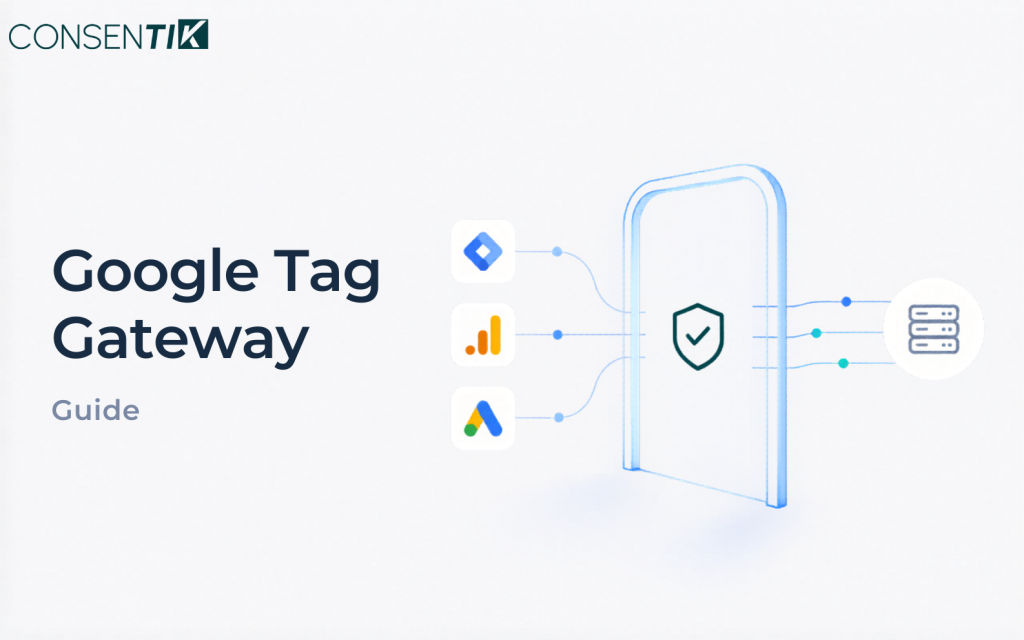
Google Tag Gateway (GTG) is a server-side tag delivery mechanism that serves Google tag scripts (like Google Ads and Google Analytics 4) from your own domain’s CDN instead of Google’s servers.
Why this matters for consent: When GTG is enabled via “one-click CDN injection” in Google Tag Manager, the Google tag script loads very early — often before your CMP script has a chance to set the consent default command. This means consent signals may arrive after the tag has already started executing (“late consent”).
How to verify if your tag is enrolled in GTG
Official reference: Google Tag Gateway — Google Developers · Setup guide
Google recommends verifying GTG with Google Tag Assistant or Google Tag Manager — these are the only methods Google considers reliable. Google does not assure the accuracy of the Network tab or third-party tools.
- Open Google Tag Assistant and click Add domain
- Enter your website URL — Tag Assistant opens a connected window and begins checking your tags
- In the results, review the tag requests and confirm whether your Google tag is served through your own first-party gateway domain (GTG) rather than
www.googletagmanager.com - Tag Assistant updates automatically as consent changes on the page, so you can also confirm consent order live
- For full enrollment details, follow the Google Tag Gateway setup guide
What to do when late consent is detected with GTG
If your Consentik diagnostic tool flags a “late consent” on a page and that page uses GTG, you have the following options:
Option 1 (Recommended): Enable Advanced Consent Mode (U+C)
Advanced Consent Mode (also called “U+C” or “Unordered Consent”) allows Google tags to run before consent is given, but restricts what data is collected. This is fully compatible with manual GTG setup.
Steps:
- In your Consentik settings, select “Advanced” mode instead of “Basic”
- Enable Data Transmission Controls in your GTM container
- Set Global Consent Defaults appropriate for your region
Option 2: Migrate into a GTM container and deploy GTM via GTG
Move all your tags into a GTM container, then deploy GTM itself via GTG. This gives you control over the load order since GTM will respect your CMP’s consent signals before firing tags.
Option 3: Set up GTG manually
Configure GTG manually (without one-click CDN injection) so you control the script import order. Ensure your CMP script loads and fires the consent default command before the GTG-served tag script.
Why Advanced Consent Mode is recommended for GTG
When GTG is used with one-click CDN injection, the script load order is controlled by Google’s infrastructure — not your page. The only mechanism that is guaranteed to work in this scenario is Advanced Consent Mode, because:
- The tag runs but restricts data collection until consent is received
- No dependency on script load order
- Compatible with manual GTG configurations
- Supported by all Google Ads and Analytics 4 products
Consent behavior outside your target region
If you configure Consentik to show the banner only in specific regions (e.g. the EEA), users outside those regions never see the banner. To keep Google measurement working for them, Consentik automatically sets the consent default to granted for all users outside your target region, while the banner region keeps the default at denied until the user acts.
This is handled at page load via two region-scoped gtag('consent', 'default') commands — no extra configuration is needed:
// 1. Denied — applies ONLY to the target region (e.g. EEA)
gtag('consent', 'default', { ad_storage: 'denied', analytics_storage: 'denied',
  ad_user_data: 'denied', ad_personalization: 'denied', region: ['AT', 'BE', ...], wait_for_update: 500 });
// 2. Granted — applies to everyone outside the target region
gtag('consent', 'default', { ad_storage: 'granted', analytics_storage: 'granted',
  ad_user_data: 'granted', ad_personalization: 'granted' });
Google applies the more specific region-scoped command first, so in-region users stay denied while everyone else is granted. Because both defaults fire synchronously at page load, measurement is maintained even before any geo lookup completes. This satisfies Google’s requirement that consent is granted where the banner does not appear, to maintain measurement.
Note: This behavior applies when the banner is region-restricted (showing in specific regions). If the banner is set to show in all regions, consent stays
deniedeverywhere until the user acts — no global grant is applied.
Further reading
- Google Tag Gateway documentation — Google Developers (authoritative reference)
- Advanced Consent Mode (U+C) — Google Developers
- Consent Mode setup guide — Consentik Documentation
- Verify your Consent Mode implementation — Consentik Diagnostic Tool