A row of raw counts tells you how many visitors saw your cookie banner. It does not tell you how many of them made a choice, or how big the sample behind a percentage is. When the signals sit on separate screens, judging how visitors treat the banner takes extra work.
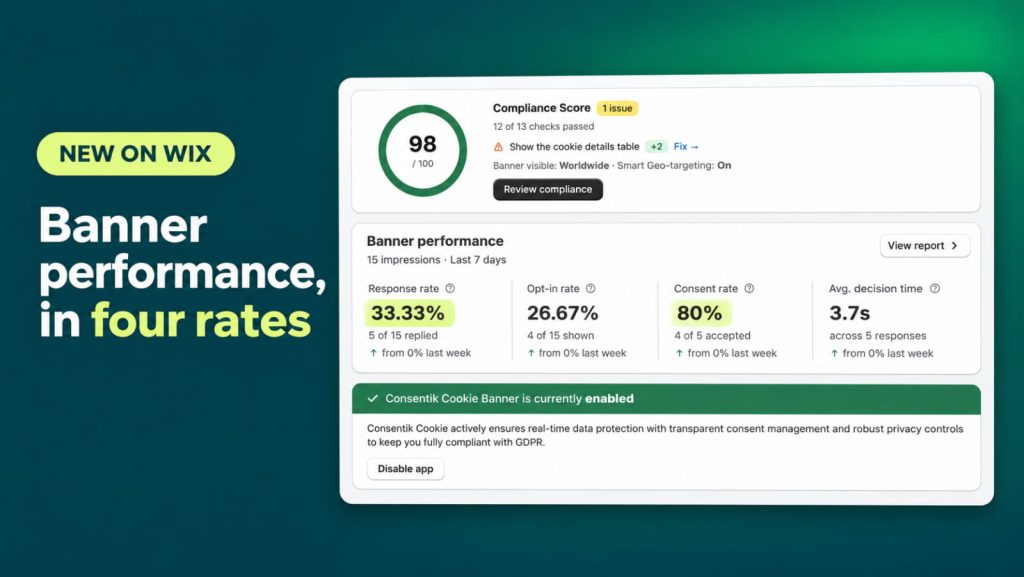
Consentik, the cookie banner app for Wix, now puts Wix cookie banner performance into one Banner performance card on the Dashboard. It shows four rates in a fixed order: Response rate, Opt-in rate, Consent rate and Avg. decision time. The Statistics page on Consent logs shows the same four measures in the same order.
Wix Cookie Banner Performance Now Shows Four Rates
Each cell on the card pairs a rate with the count behind it, so you read the percentage and the sample size together.
- Response rate: The new measure. It shows how often visitors make a choice after the banner is displayed, and any click counts as a response.
- Opt-in rate: Calculated against every banner display, so the cell reads like “4 of 15 shown”.
- Consent rate: Calculated against the visitors who responded, so the cell reads like “4 of 5 accepted”.
- Avg. decision time: How long visitors take to decide, shown with the number of responses behind it, such as “across 5 responses”. It was called Response time before.
What Changed on the Wix Dashboard and Consent Logs Statistics Page
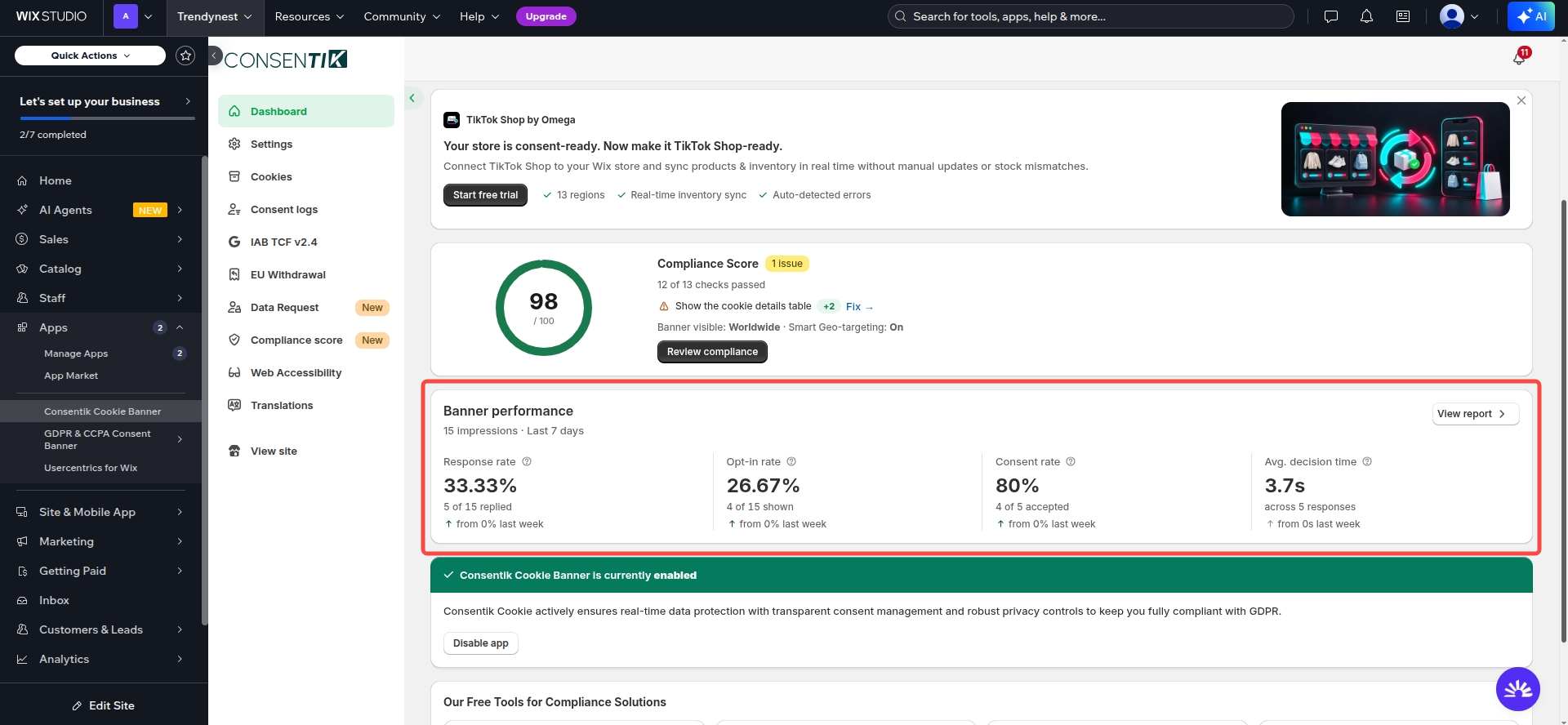
Dashboard: from five raw counts to one Banner performance card
- Before: One row of five numbers (Total impression, Responses, Accepted, Accepted Partial, Declined) with a line chart below it, fixed to the last 7 days.
- Now: A Banner performance card with four cells, in this order: Response rate, Opt-in rate, Consent rate, Avg. decision time. The card replaces the row of five counts and the chart.
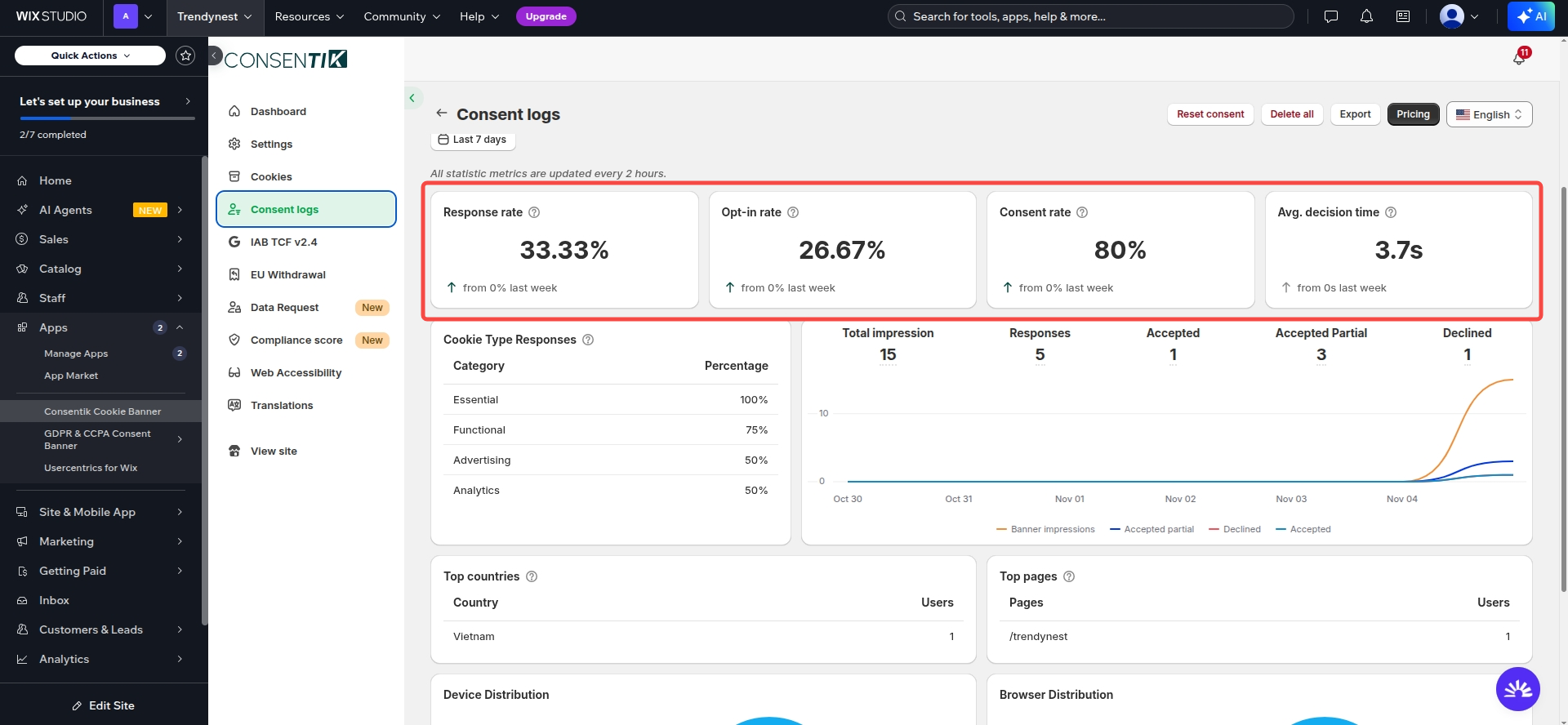
Consent logs Statistics: three cards become four
- Before: Three cards: Opt-in rate, Consent rate and Response time.
- Now: Four cards with the same four measures, in the same order as the Dashboard, with Response rate added at the front.
How Cookie Consent Rate, Opt-in Rate and Response Rate Are Read
- Two rates use banner displays: Response rate and Opt-in rate divide by the total number of times the banner was shown.
- Two measures use responses: Consent rate and Avg. decision time are based on the visitors who responded.
- The count is always visible: Every cell prints its base figure, such as “3 of 9” or “across 712 responses”, so you never read a rate without its denominator.
- A new comparison line: Each cell now shows an arrow and last week’s value, written as “from y% last week”, in place of the earlier “x% From previous 7 days” line.
- One rename, no new math: Response time is now Avg. decision time and no longer carries a color. The calculation and the number are unchanged.
Why Cookie Consent Rate With Context Beats Raw Counts
- Sample size next to every rate: A rate built on a handful of responses and a rate built on hundreds can look alike. The count under each cell tells them apart.
- A banner nobody answers shows up first: A low Response rate means visitors see the banner but do not choose. It is a prompt to review your banner settings.
- Two questions, kept apart: Response rate answers whether visitors respond. Consent rate answers what the responders choose.
- A week-over-week reference: The “from y% last week” line gives you a baseline without opening another screen.
How to Check Wix Cookie Banner Performance in Consentik
Where to find it (3 steps)
- Open Consentik from your Wix dashboard.
- On the Dashboard, find the Banner performance card. Read the four cells from left to right, and check the count printed under each rate.
- Open the Statistics page on Consent logs to see the same four measures in the same order, with the rest of the page below them.
What Stays the Same on the Consent Logs Statistics Page
Only the top row of cards changed. Everything else on the page works as before:
- Cookie Type Responses table: Unchanged.
- Raw counts and line chart: The five counts and the line chart that left the Dashboard are still on the Statistics page, along with the date picker.
- Top country and top page tables: Unchanged.
- Device and browser charts: Unchanged.
Review Your Wix Cookie Banner Performance Today
The Banner performance card and the four-card Statistics page are live in Consentik for Wix. Open Consentik from your Wix dashboard to review both. If you need help reviewing your banner settings, the Consentik team is here to help.
Check your cookie banner performance
Add Consentik to your Wix site and see how visitors respond to your banner.